How to split screen on Mac: 4 easy ways
Put two (or more) windows side by side on your Mac, with or without extra apps.
By Geethika Tatiparthi · Updated October 18, 2026
1. Keyboard shortcuts (macOS Sequoia and later)
Since macOS 15 Sequoia, the Mac has built-in tiling shortcuts. Click the window you want to move, then press:
| Shortcut | What it does |
|---|---|
| fn ⌃ ← | Left half |
| fn ⌃ → | Right half |
| fn ⌃ ↑ / ↓ | Top half / bottom half |
| fn ⌃ ⇧ ← | Two windows side by side: this one left, the previous one right |
| fn ⌃ F | Fill the whole screen (without full-screen mode) |
| fn ⌃ C | Center the window |
On newer keyboards the fn key has a globe icon (🌐).
2. Drag a window to the edge of the screen
Also on Sequoia and later: drag a window by its title bar to the left or right edge of the screen and let go when a highlighted area appears. Drag it into a corner for a quarter of the screen. If it doesn't work, hold ⌥ Option while dragging.
You can turn this on or off in System Settings → Desktop & Dock → Windows ("Tile by dragging windows to screen edges").
3. The green button (works on older macOS too)
- Hover over the green button at the top left of a window.
- On Sequoia, pick a layout under Move & Resize or Fill & Arrange. On Sonoma and earlier, choose Tile Window to Left of Screen.
- On Sonoma and earlier this opens Split View in full-screen mode: click a second window to fill the other side. Drag the line in the middle to change the sizes, and press Esc or move the pointer to the top to leave.
4. Use a window manager for more layouts
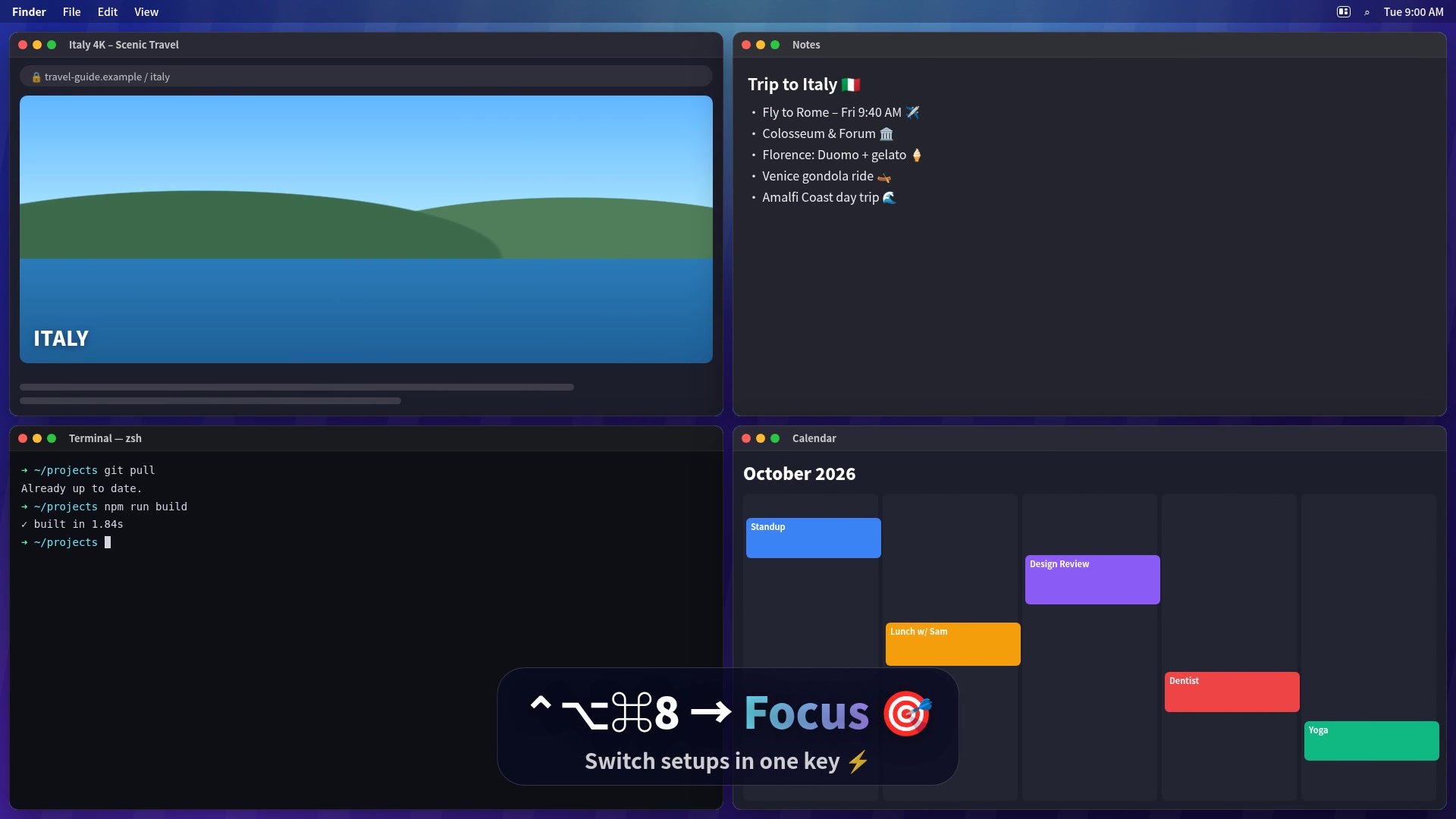
The built-in options are fine for two windows. They can't do thirds or sixths, they can't remember where each app goes, and they can't save a layout. A window manager adds those:
- Thirds, quarters and sixths with shortcuts like ⌃⌥←.
- Saved workspaces: arrange your windows once, save them with a shortcut such as ⌃⌥⌘1, and press it any time to put every app back. See how workspaces work.
- App rules: Mail always opens on the right half, your browser on the left.
Comparing apps? See TidyFrame vs Magnet and TidyFrame vs Rectangle.
Questions
What is the keyboard shortcut to split screen on Mac?
On macOS 15 Sequoia or later, press fn + Control + Left Arrow to move a window to the left half and fn + Control + Right Arrow for the right half. fn + Control + Shift + Left Arrow puts the two most recent windows side by side.
How do I split screen on an older Mac?
On macOS 14 and earlier, hover over the green button at the top left of a window and choose Tile Window to Left of Screen. This opens full-screen Split View; pick a second window for the other side.
Can I split my Mac screen into three or four windows?
macOS Sequoia can tile into quarters by dragging a window into a corner. For thirds, sixths or saved layouts of several apps you need a window manager such as TidyFrame.
How do I save a split-screen layout so I don't have to set it up again?
macOS can't save layouts. In TidyFrame, arrange your windows, click Save Current Layout and give it a shortcut. Press the shortcut later and every window goes back to its place.
Try TidyFrame free for 7 days
Every feature included. Then $4.99 once, no subscription. macOS 14 or later.
Download the free trial