How to save and restore window layouts on multiple monitors (Mac)
Plug in your monitor, and every app goes back to the screen and spot where it belongs.
By Geethika Tatiparthi · October 22, 2026 · I make TidyFrame, which is one of the options below.
Why windows end up on the wrong screen
When you unplug an external display, macOS moves its windows onto your MacBook's screen. When you plug it back in, the windows often stay where they are, piled up on one screen. The same happens after sleep, with some docks, and when you switch between home and office setups.
What macOS can do on its own
- Assign an app to a display: with "Displays have separate Spaces" turned on (System Settings → Desktop & Dock), right-click an app in the Dock → Options → Assign To → the desktop on a specific display.
- Arrange displays: System Settings → Displays → Arrange, so moving the mouse between screens matches where they sit on your desk.
- Tile on each screen: on macOS 15 Sequoia or later, drag a window to a screen edge or use fn ⌃ + arrow keys. All built-in shortcuts.
What's missing: there is no way to save "Mail and Calendar on the left monitor, editor and browser on the right" and bring all of it back in one step.
Save a multi-monitor layout with TidyFrame
- Connect your monitors and arrange your windows the way you like them on every screen. Snap them quickly with shortcuts, or drag a window to a screen edge.
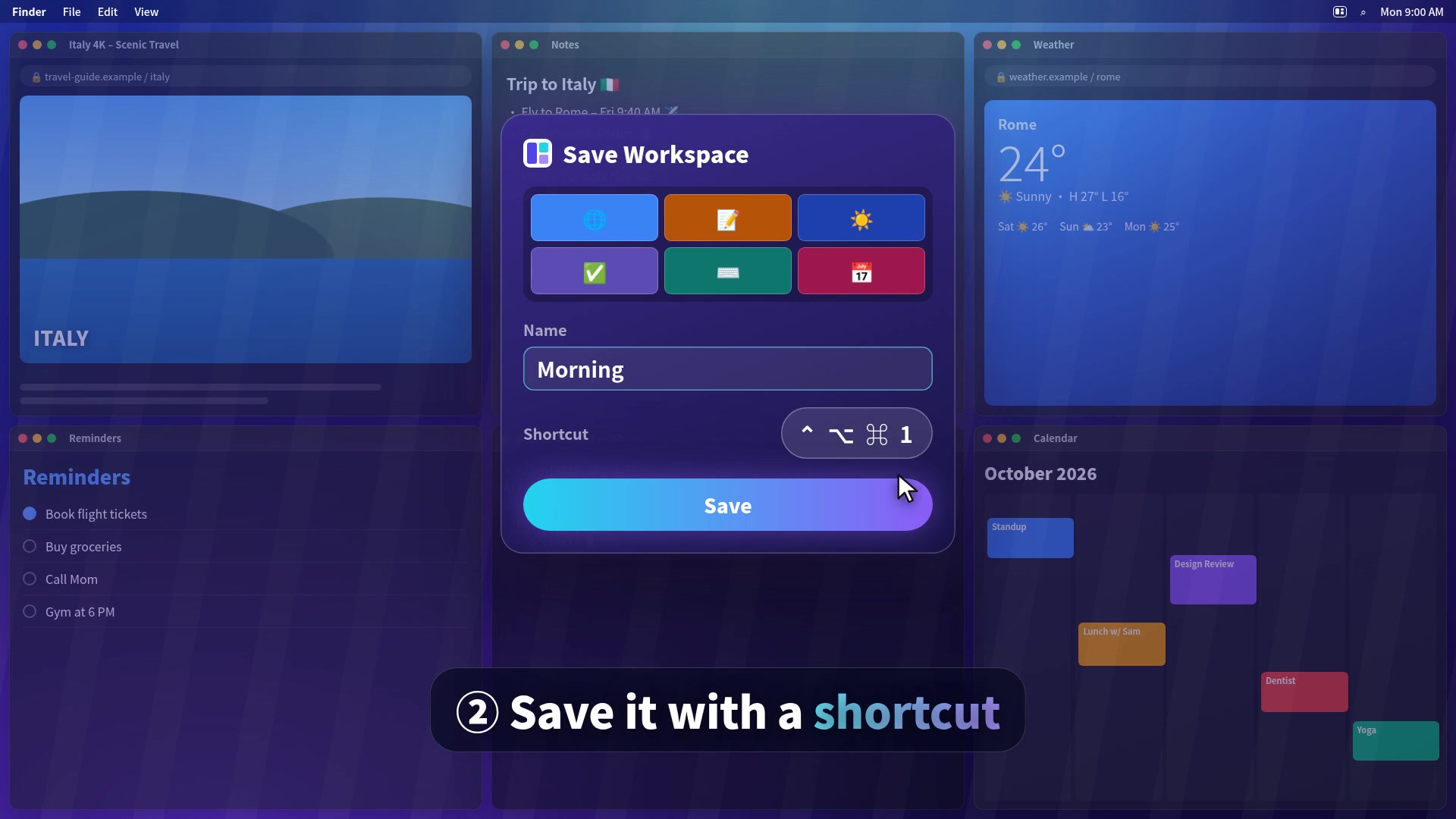
- Save it: open TidyFrame → Workspaces → Save as Workspace. The preview shows a small map of all your displays with each window on it. Name it, for example "Desk" or "Office", and record a shortcut.
- Restore it: whenever you're back at your desk, press the shortcut. Each window goes back to its display in a clean grid, and apps that are closed can open by themselves.
Tips for multi-monitor setups
- One workspace per setup: "Desk" with two monitors, "Laptop" for the built-in screen alone. Press the one that matches where you are.
- Move a window to the other screen: TidyFrame's Next Display and Previous Display commands send the active window to the other monitor and keep its relative size and position.
- Vertical monitors work too: handy for code, documents and chat.
- A workspace holds up to 6 windows, so save several small workspaces rather than one huge one.
Other apps worth knowing
| App | What it's good at |
|---|---|
| Stay | Remembers window positions and restores them automatically when a display reconnects. |
| Rectangle Pro | Layouts that can apply automatically, for example when a monitor connects. |
| Moom 4 | Saved layouts with many custom actions for power users. |
| TidyFrame | Snapping plus saved workspaces in one small app, $4.99 once, 7-day free trial. |
Details from each app's own website or listing in October 2026. All names are trademarks of their owners. Compare more options in Best window managers for Mac.
Questions
Can a Mac remember window positions for multiple monitors?
Only partly. macOS remembers which display an app last used and can assign apps to a display's desktop, but it cannot save a layout of several apps across several monitors and restore it with one shortcut. A window manager such as TidyFrame, Moom or Stay adds that.
Why do my windows move to one screen when I connect an external monitor?
When a display disconnects, macOS moves its windows to the remaining screen. When you reconnect it, macOS doesn't always move them back. Saving your layout as a workspace lets you put everything back with one shortcut.
Does TidyFrame restore windows automatically when I plug in a monitor?
Not yet. You press the workspace's shortcut (or pick it in the menu bar) after connecting the monitor. Apps like Stay and Rectangle Pro can restore layouts automatically when a display connects.
How do I move a window to my other monitor with the keyboard?
macOS has no built-in shortcut for it. In TidyFrame, Next Display and Previous Display move the active window to the other screen and keep its relative size and position (by default Control-Option-Command with the right or left arrow).
Does it work with vertical (portrait) monitors?
Yes. TidyFrame snaps and restores windows on vertical displays too.
Try TidyFrame free for 7 days
Every feature included. Then $4.99 once, no subscription. macOS 14 or later.
Download the free trial